HubSpot setup guide
Connect HubSpot to HappyStack so your customers, open pipeline and opted-out contacts are never contacted, and every email HappyStack sends is logged as a HubSpot activity on the right contact.
When to use this guide: use it when you're connecting HubSpot to HappyStack for the first time, or reconnecting after a disconnect.
This guide has three main steps:
- Create your do-not-contact segments (lists) in HubSpot.
Decide who HappyStack should never contact. - Connect HubSpot to HappyStack.
Sign in to HubSpot and approve access. - Map your segments in HappyStack.
Tell HappyStack which segment is which.
If you'd like us to walk you through it, contact your HappyStack account manager and we'll set it up with you on a call.
Before you start
You'll need:
- A HappyStack account. You'll connect from
app.happystack.com. - A HubSpot user with permission to install apps. In most portals that means a Super Admin.
- The HubSpot portal you want to connect. If you have more than one, HubSpot asks you to choose during setup.
Step 1: Create your do-not-contact segments (lists) in HubSpot
HappyStack doesn't recreate your filters. It reads the members of segments (lists) you already manage in HubSpot, so you stay in control: change a segment's filters and what HappyStack excludes changes with it.
HubSpot now calls lists segments. You'll find them under CRM › Segments. HappyStack's own screens still say "lists", so the two words mean the same thing in this guide.
In HubSpot, create one segment (list) for each of the categories below. Set each one to update automatically (an active segment), so new customers or opt-outs are picked up without you doing anything.
| Segment (list) | Type | Who goes in it |
|---|---|---|
| In pipeline | Companies | Companies your team is actively working |
| Disqualified | Companies | Companies your team has disqualified for any reason |
| Closed lost | Companies | Companies marked closed lost or gone cold |
| Current customers | Companies | Your current customers |
| Former customers | Companies | Customers who have churned |
| Opt out / unsubscribe | Contacts | Anyone who has asked not to be contacted by your team |
| Other | Either | Anyone else you want excluded |
How matching works: company segments are matched on company domain, and contact segments are matched on email address. You don't need every category. Create the ones that apply to you.
Step 2: Connect HubSpot to HappyStack
-
In HappyStack, go to Settings › Integrations › HubSpot (or open
app.happystack.com/settings/integrations/hubspot) and click Connect HubSpot.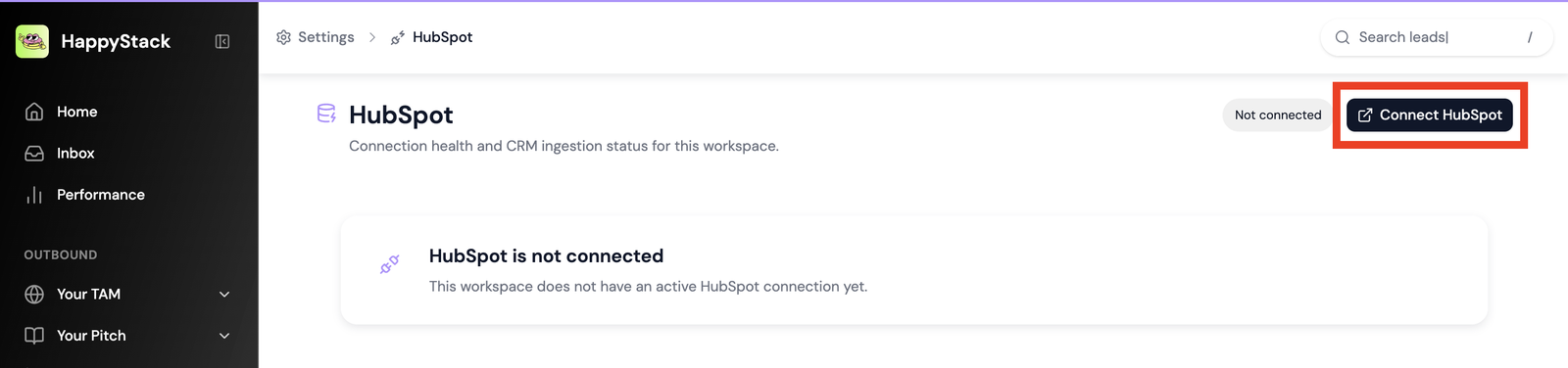
The HubSpot page in HappyStack before you connect. -
HubSpot opens. Click Sign in to your HubSpot account and sign in as a user who can install apps.

-
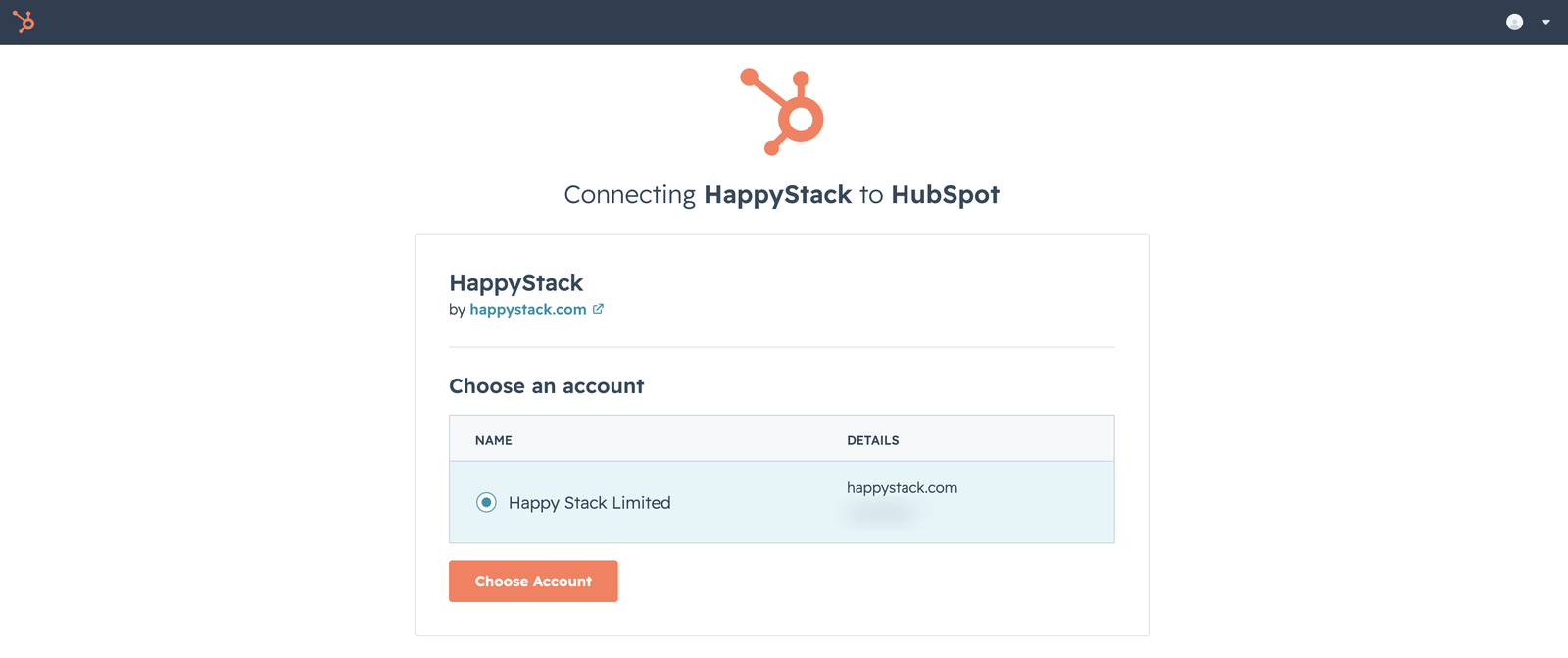
Choose the HubSpot portal you want to connect and click Choose Account.
-
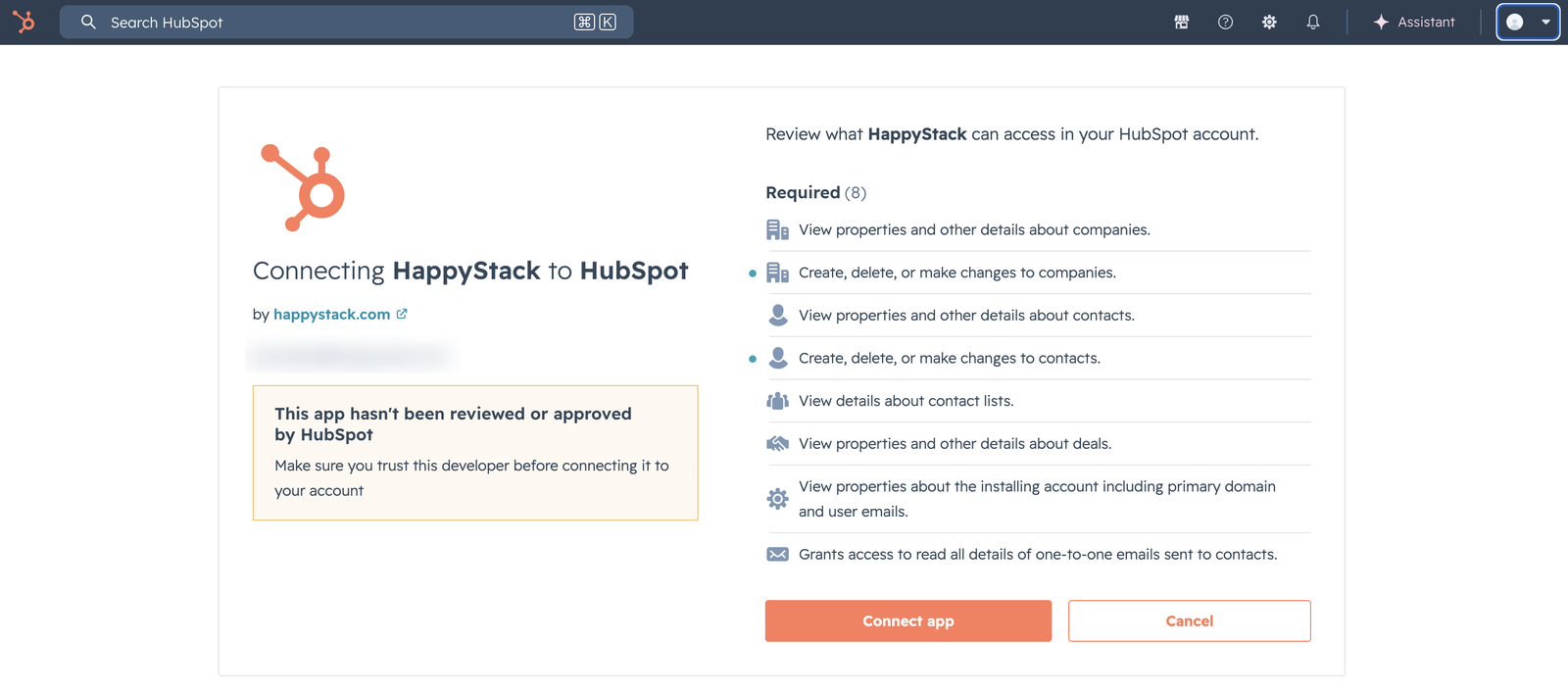
Review what HappyStack can access and click Connect app. Each permission is explained in What HappyStack can access below.
-
If HubSpot shows a Connecting an unverified app warning, type
I accept the riskand click Connect.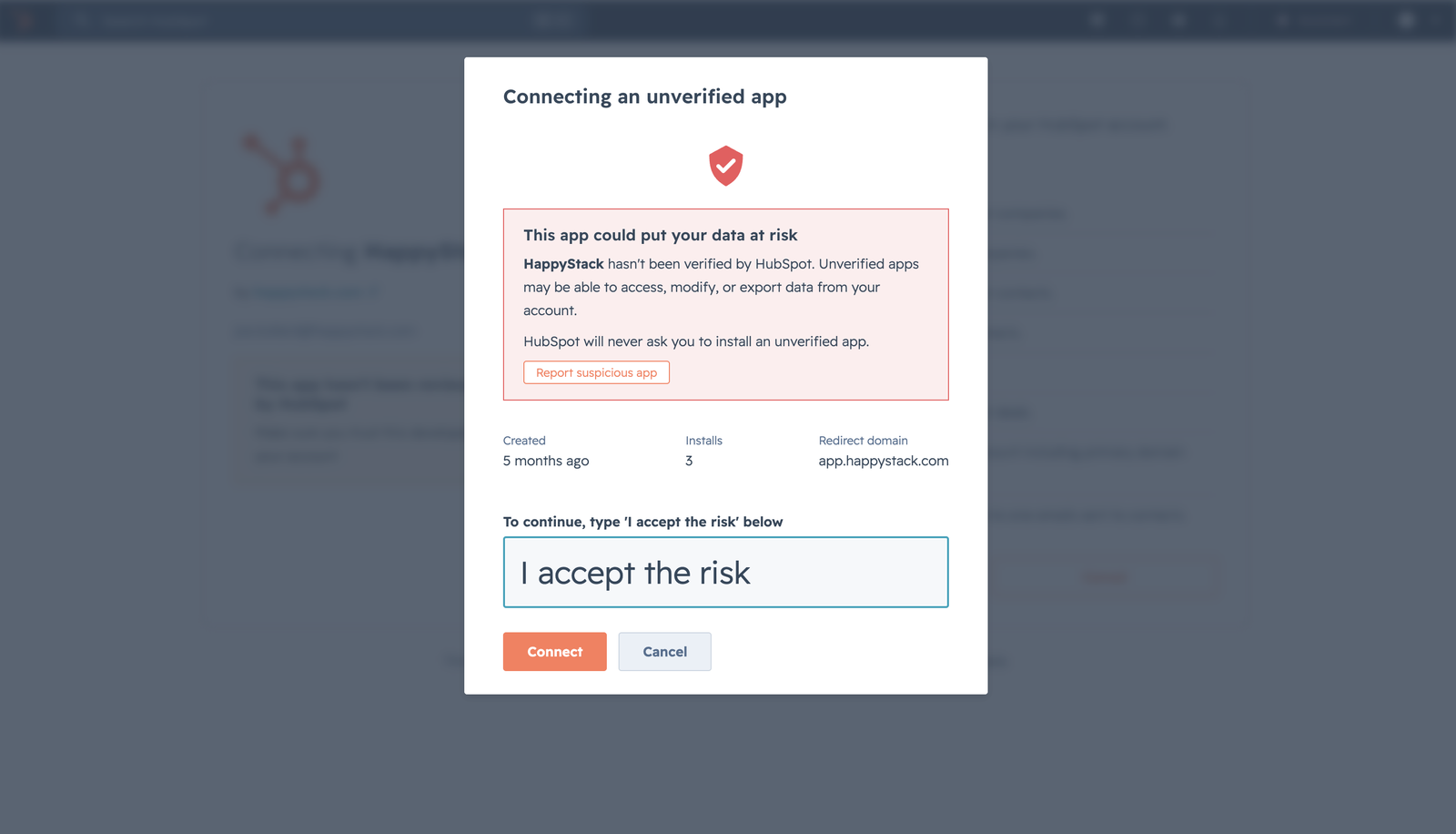
Why you might see this: HubSpot shows this notice for apps that haven't finished its marketplace review. It's expected while HappyStack's review completes, and it goes away once the app is approved. Check that the redirect domain shown is
app.happystack.com. -
You'll land back in HappyStack. The HubSpot page now shows Connected and healthy.
Step 3: Map your segments in HappyStack
Now tell HappyStack which HubSpot segments (lists) to exclude.
On the HubSpot page in HappyStack, scroll to Do-not-contact lists. If you've just created your segments, click Refresh lists.
Add a segment, then choose the Reason that matches it: In pipeline, Disqualified, Closed Lost, Customer, Former Customer, Opt out / Unsub or Other.
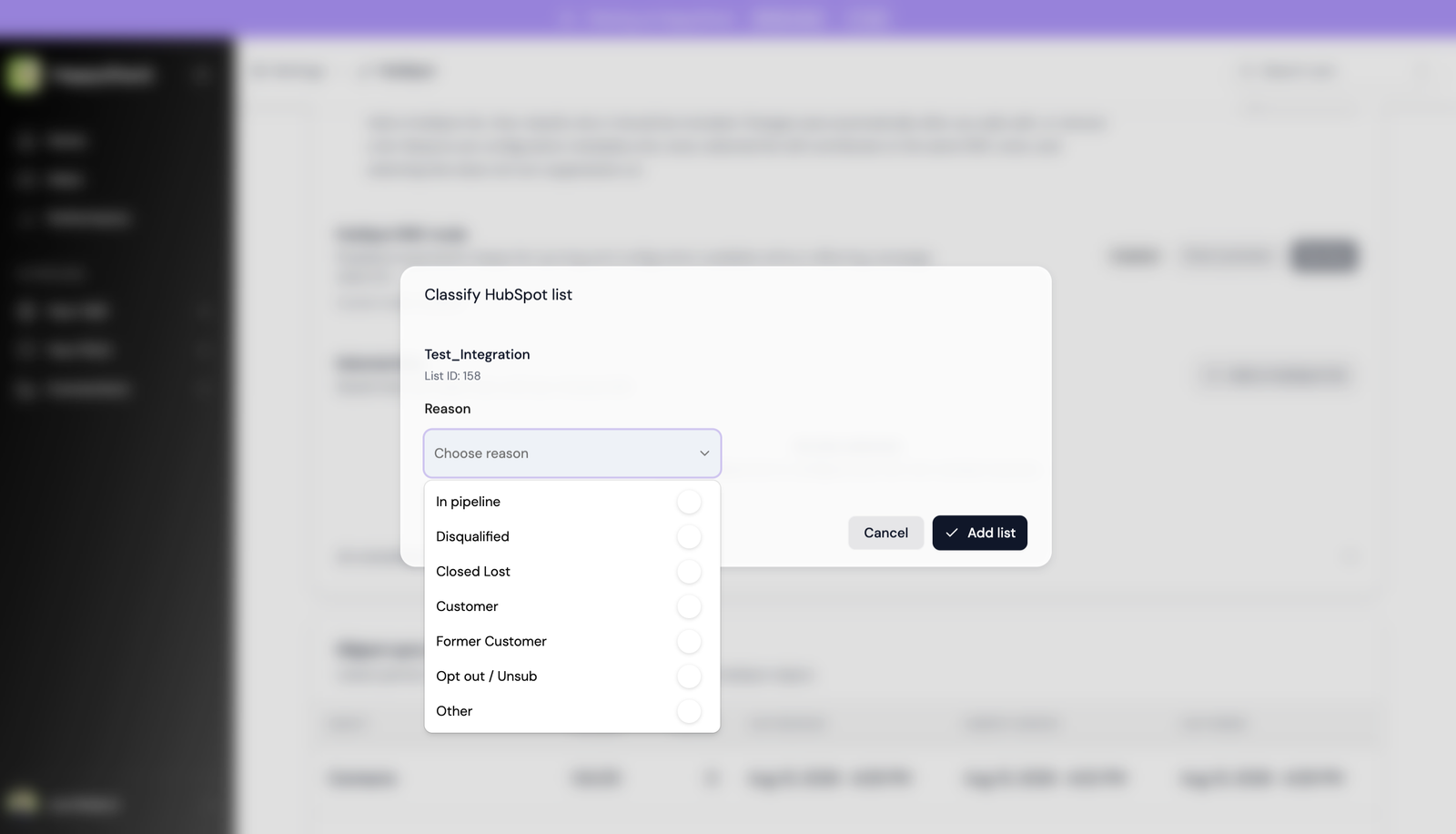
Click Add list. Repeat for each segment you created. Changes save automatically.
Good to know: the reason is for your own organisation. Every segment you add is excluded in the same way, whatever reason you give it.
What HappyStack can access
HubSpot asks you to approve these permissions when you connect. Here's what each one is for.
| Object | Access | What HappyStack does with it |
|---|---|---|
| Companies | Read | Reads company names and domains to match companies on your do-not-contact segments (lists). |
| Companies | Write | Creates the company when HappyStack contacts someone at a company that isn't in your CRM yet. Never deletes companies or changes deal stages, lifecycle stages or existing properties. |
| Contacts | Read | Reads email addresses to match your opt-out and do-not-contact segments (lists). |
| Contacts | Write | Creates a HubSpot activity record on the matching contact for each email HappyStack sends, and creates the contact if they aren't in your CRM yet. Never deletes contacts. |
| Segments (lists) | Read | Reads membership of the specific segments you choose, nothing else. |
| Deals | Read | Reads deal stage and status to report on leads HappyStack sourced, such as meeting booked or won. |
| Account | Read | Reads your portal's primary domain and the connecting user's email to confirm which portal is connected. |
| One-to-one emails | Read | Sees outreach your team has already sent, so HappyStack doesn't contact someone you're already talking to. |
What HappyStack never does
- Delete contacts, companies or any other record.
- Create deals, change deal stages, assign owners or route leads.
- Change lifecycle stages or overwrite existing properties.
How duplicates are avoided
Before creating a record, HappyStack checks for an existing one. Contacts are matched by email address. Companies are matched by domain, including the alternative domains HappyStack keeps on file, so an existing company is found rather than a new one created.
How often data syncs
The first sync reads your full company and contact base. After that, HappyStack only fetches records that have changed since the last sync, usually once every 24 hours, and picks up association changes as they happen. API usage stays well within HubSpot's daily limits.
How to disconnect
In HappyStack, go to Settings › Integrations › HubSpot.
Click Disconnect.
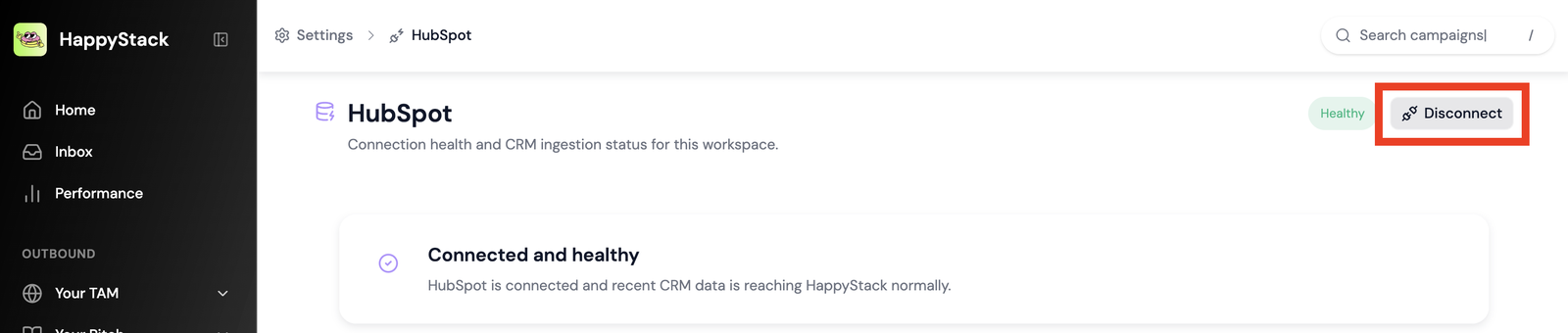
This removes the HappyStack app from your HubSpot portal and revokes all access. HappyStack stops reading your data immediately.
FAQ
Does HappyStack get access to my whole CRM?
HappyStack can read your full contact and company base, which it needs to recognise who to exclude. Most of the people on your do-not-contact segments won't be prospects HappyStack sourced, so it has to see them to avoid contacting them.
Which fields can HappyStack see?
HubSpot grants read access to all fields on the objects listed above. HappyStack uses the ones described in What HappyStack can access, such as company domain and contact email.
Where does HappyStack's outreach show up in HubSpot?
Each email HappyStack sends is created as an activity record on the matching contact in HubSpot, so your team can see what a prospect was sent before they pick up the conversation.
Will this change how leads are created or assigned?
No. HappyStack doesn't create deals, assign owners or route leads, so your existing lead generation and assignment process stays the same.
Who needs to connect HubSpot?
Someone with permission to install apps in your HubSpot portal, usually a Super Admin. You only need to connect once per HappyStack workspace.
What happens if I change a segment (list) in HubSpot?
HappyStack picks up the new membership on its next sync. If you create a new segment, click Refresh lists on the HubSpot page in HappyStack and add it.
Need a hand?
Contact your HappyStack account manager, or email support@happystack.com and we'll help you get connected.
Contact support